
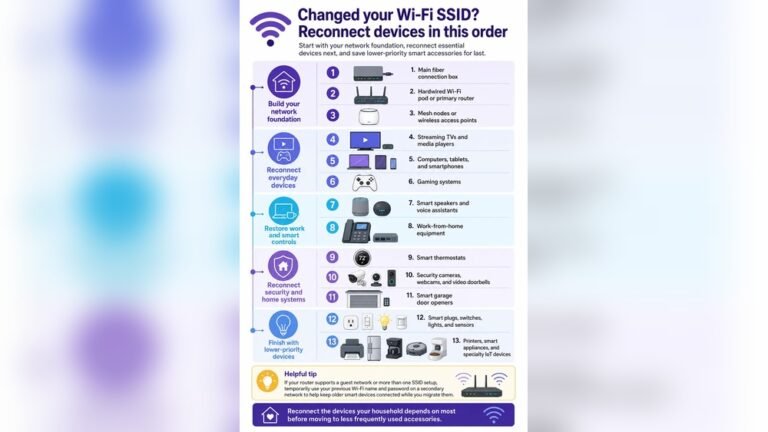
When you change your Wi-Fi router, you might expect all your devices to work smoothly. But smart appliances like thermostats, security cameras, or robotic vacuums often stop working until you reconnect them. This can feel frustrating, especially if you have many devices.
The good news is that with the right steps, you can get your smart home running again quickly and avoid common issues.
Let’s walk through the process and highlight some tips most people miss.
Why Smart Appliances Lose Connection After Router Changes
Smart appliances remember your Wi-Fi network name (SSID) and password. When you change your router, even if you use the same network name and password, the network’s technical details (like IP addresses or security type) can still change. This causes your smart devices to lose their link.
Most brands do not automatically reconnect to a new router. Understanding this can save you time and help you plan the reconnection process.
Essential Preparation Before Reconnecting
Before you start reconnecting your appliances, a little preparation can make a big difference:
- List all smart devices: Write down every device you need to reconnect. This includes bulbs, plugs, speakers, thermostats, and cameras.
- Check your new router settings: Make sure the Wi-Fi is set to 2.4 GHz if possible. Many smart devices only work on 2.4 GHz, not 5 GHz.
- Have your Wi-Fi password ready: You’ll need it for each device.
- Update your device apps: Make sure the apps you use to control your appliances are up-to-date on your phone or tablet.
Here’s a quick comparison of 2.4 GHz and 5 GHz for smart devices:
| Frequency | Range | Speed | Smart Device Compatibility |
|---|---|---|---|
| 2.4 GHz | Longer | Lower | High |
| 5 GHz | Shorter | Higher | Low |
Tip: If your new router combines both 2.4 and 5 GHz under one name, look for a “split” option in the settings. This can fix many connection issues.
Credit: support.orbitonline.com
Step-by-step: How To Reconnect Smart Appliances
The process can vary by brand, but these steps work for most smart appliances:
- Reset the device: Many smart devices need a reset before connecting to a new network. For example, hold the power button for 10 seconds or use a pinhole reset.
- Open the device app: Use the app you used for setup (like Google Home, Alexa, or the brand’s app).
- Add the device again: In the app, choose “Add Device” or “Set up new device.”
- Follow pairing instructions: The app will ask for your new Wi-Fi name and password.
- Wait for connection: The device may blink, beep, or show a message when connected.
Example: Reconnecting A Smart Plug
- Unplug and plug in the smart plug.
- Hold the power button until the light blinks.
- Open the app, select the plug, and choose “Reconnect” or “Add.”
- Enter your Wi-Fi details as asked.
- Wait for confirmation.
Common Mistakes When Reconnecting
- Wrong Wi-Fi frequency: Many people try connecting to 5 GHz, but most smart devices only support 2.4 GHz.
- Different network names: If your new router’s SSID is different, all devices must be re-added, not just powered on.
- Skipping device reset: Not resetting the device can prevent pairing.
- Weak Wi-Fi signal: Place devices close to the router for setup, then move them later.
Here’s a quick look at what happens if you reuse your old network name vs. use a new one:
| Router Setup | Device Reconnection Needed | Typical Issues |
|---|---|---|
| Same SSID & Password | Sometimes | IP conflicts, security mismatch |
| New SSID or Password | Always | All devices need setup again |
Troubleshooting: When Devices Won’t Reconnect
If your device still won’t connect, try these steps:
- Restart your router: Power off, wait 30 seconds, and power on.
- Move the device closer: Wi-Fi signal is weaker far from the router.
- Check for app updates: An outdated app can block setup.
- Reset network settings on your phone: This helps if your phone can’t find devices.
- Contact support: Sometimes, a device-specific reset is needed. Check the manufacturer’s site for advice.
Non-obvious insight: Some devices store old network info even after a reset. Try deleting the device from the app completely before adding it again.

Credit: www.ebay.com
Save Time Next Time: Proactive Tips
- Label your devices: Write the device location and app used on each appliance.
- Backup your Wi-Fi setup: Take screenshots of router settings before changing anything.
- Choose appliances with Bluetooth setup: These often reconnect faster, as Bluetooth helps pair to new networks.
A great resource for understanding smart home basics is the CNET Smart Home Guide.
Frequently Asked Questions
How Do I Know If My Smart Appliance Uses 2.4 Ghz Or 5 Ghz Wi-fi?
Most smart devices use 2.4 GHz only. Check your device’s manual or the product’s website for details. If it does not connect, try setting your router to 2.4 GHz.
Will My Smart Devices Reconnect Automatically If I Keep The Same Wi-fi Name And Password?
Sometimes they will, but not always. Differences in security settings or IP addresses can block automatic reconnection. It’s safest to be ready to set up each device again.
Can I Reconnect All My Devices At Once?
No, each device usually needs to be reconnected one at a time through its specific app. Trying to rush can cause devices to appear offline or unresponsive.
What If My Smart Device Doesn’t Have A Reset Button?
Check the manual for alternative reset methods. Some devices reset when powered off for a certain time or have a combination of button presses for reset.
Is There A Way To Avoid Redoing Everything If I Upgrade Routers In The Future?
Choosing a router that lets you copy your exact old Wi-Fi settings can help. Also, devices with Bluetooth or NFC setup can reduce future hassle.
Switching routers can seem like a headache for smart homes, but with the right approach, you can restore your connected lifestyle quickly. Being prepared and knowing these steps will save you time and frustration for future upgrades.
Credit: support.orbitonline.com