
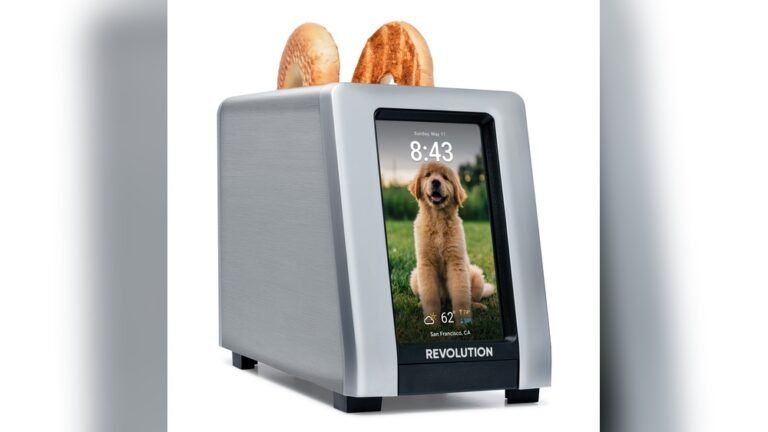
Smart appliances make life easier—until they refuse to connect to WiFi. You spend extra money for a fridge, washing machine, or oven that you can control from your phone. But when that “smart” device won’t join your home network, it can be frustrating. Most people blame their router or the appliance, but the real reasons are often less obvious.
Understanding why your smart appliance won’t connect to WiFi saves you time and money. This guide explains common problems, troubleshooting steps, and insider tips that help even non-technical users. You’ll learn how to get your device online, avoid common mistakes, and understand the deeper issues behind connectivity failures.
Common Reasons Smart Appliances Fail To Connect
The most frequent WiFi problems are not always obvious. Let’s look at why your device may struggle to join your network.
Wrong Wifi Band
Most smart appliances only support 2.4 GHz WiFi, not 5 GHz. If your router uses only 5 GHz or both bands, your device might not see the network.
| WiFi Band | Supported by Smart Appliances? | Speed | Range |
|---|---|---|---|
| 2.4 GHz | Yes (Most) | Up to 600 Mbps | Longer |
| 5 GHz | No (Some) | Up to 1300 Mbps | Shorter |
Weak Signal Or Interference
If your appliance is far from the router, the signal may be too weak. Walls, metal, or microwaves can interfere with the connection.
Incorrect Password
A wrong password is a classic mistake. Double-check your WiFi password. Some routers have passwords with special characters that appliances don’t accept.
Network Overload
Too many devices on your WiFi network can cause congestion. Older routers struggle with more than 10-15 connected devices.
Firmware Issues
Your smart appliance may need a firmware update. Outdated software can prevent connections, especially with newer routers.
Hidden Ssid
If your WiFi is set to hidden SSID, many appliances will not connect unless you manually enter the network name.
Mac Filtering
Some routers use MAC address filtering for security. If your appliance’s MAC address isn’t allowed, it won’t connect.
Quick Troubleshooting Steps
You don’t need to be a tech expert to fix most WiFi problems. Try these steps:
- Check WiFi band: Switch your router to 2.4 GHz or enable both bands.
- Move closer to router: Place your appliance within 15-20 feet of the router.
- Restart devices: Turn off your appliance and router, wait 30 seconds, then turn them back on.
- Double-check password: Re-enter your WiFi password carefully.
- Update firmware: Use the appliance’s app or website to check for updates.
- Disable MAC filtering: Temporarily turn it off in your router settings.
- Unhide SSID: Make your WiFi network visible during setup.
These steps solve about 80% of WiFi issues for smart appliances.
Advanced Troubleshooting And Insights
Some problems are less obvious. Here are two insights most beginners miss:
Router Settings Matter
Many routers use automatic channel selection. If your router is on a crowded channel (like channel 6), appliances may have trouble connecting. Manually setting your router to channel 1 or 11 can help.
| WiFi Channel | Interference Level | Best For Appliances? |
|---|---|---|
| 1 | Low | Yes |
| 6 | Medium | No |
| 11 | Low | Yes |
Security Protocols
Some appliances only support WPA2 security, not newer protocols like WPA3. If your router uses WPA3, switch back to WPA2 during setup.
Examples And Real-world Data
A study by Statista found that 27% of smart appliance owners experienced WiFi setup problems. The most common issues were band incompatibility and signal weakness.
Example: You buy a smart washing machine and try to connect it to your WiFi. Your router uses 5 GHz only, so the machine never sees the network. You change the router setting to 2.4 GHz, and the machine connects instantly.
Another example: Your smart fridge is in the garage, far from the router. The WiFi signal drops. You add a WiFi extender between the router and fridge, and the connection stabilizes.
Practical Tips To Avoid Future Problems
- Place router centrally: Put your router in the middle of your home.
- Use WiFi extenders: For large homes or appliances far from the router.
- Limit connected devices: Disconnect unused devices from WiFi.
- Update both router and appliance firmware regularly.
- Check compatibility before buying: Look for appliances supporting your router’s band and security protocol.
Comparing Smart Appliance Brands
Some brands are easier to connect than others. Here’s a comparison:
| Brand | WiFi Band Support | Ease of Setup | App Reliability |
|---|---|---|---|
| Samsung | 2.4 GHz | Easy | High |
| LG | 2.4 GHz | Moderate | Medium |
| GE | 2.4/5 GHz | Easy | High |
| Whirlpool | 2.4 GHz | Moderate | Medium |
Samsung and GE appliances are known for easy WiFi setup and reliable apps. Whirlpool and LG may need more manual steps.
Frequently Asked Questions
Why Does My Smart Appliance Only See Some Wifi Networks?
Most appliances only support 2.4 GHz WiFi. If your router uses 5 GHz or has hidden SSID, your device may not detect it.
Can I Use A Wifi Extender With Smart Appliances?
Yes, a WiFi extender improves signal strength, especially for appliances far from the router. Make sure it supports the same WiFi band as your appliance.
How Can I Check If My Appliance Is Connected?
Open the appliance’s app or control panel. Look for the WiFi icon or status message. Some appliances show network status on their screen.
Is It Safe To Change Router Security Settings?
Changing from WPA3 to WPA2 is safe for most homes. WPA2 is widely supported. For more details, see this Wi-Fi Alliance guide.
What If None Of These Steps Work?
Contact the appliance manufacturer’s support. Sometimes the WiFi module is faulty. Ask for a replacement or professional help.
Getting your smart appliance online doesn’t have to be difficult. With these practical steps and insights, you can solve most WiFi connection problems quickly. Remember to check compatibility, update firmware, and place your router wisely. If you follow these tips, your “smart” appliance will finally live up to its name.